Bundled in the inbox and Unbundled
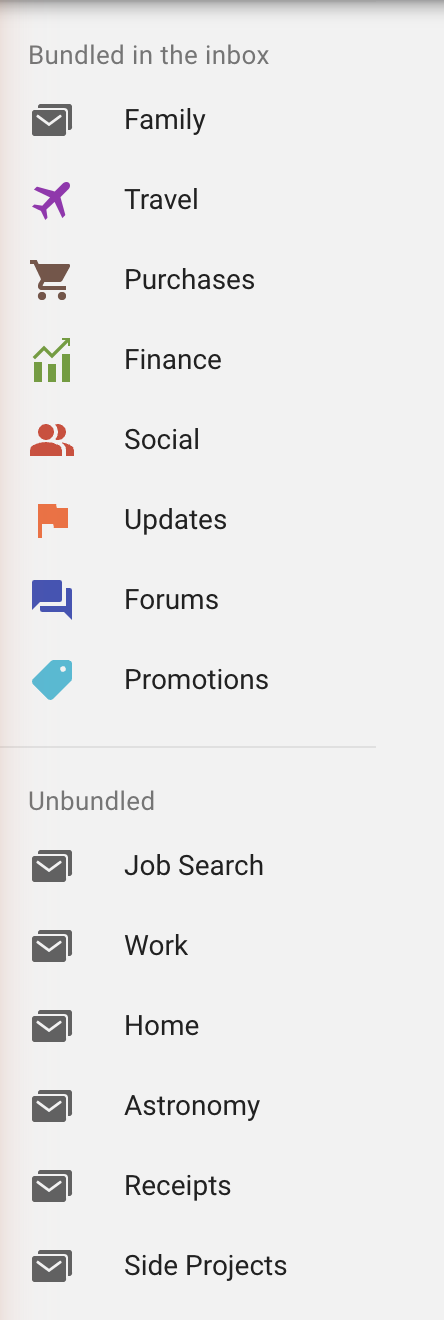
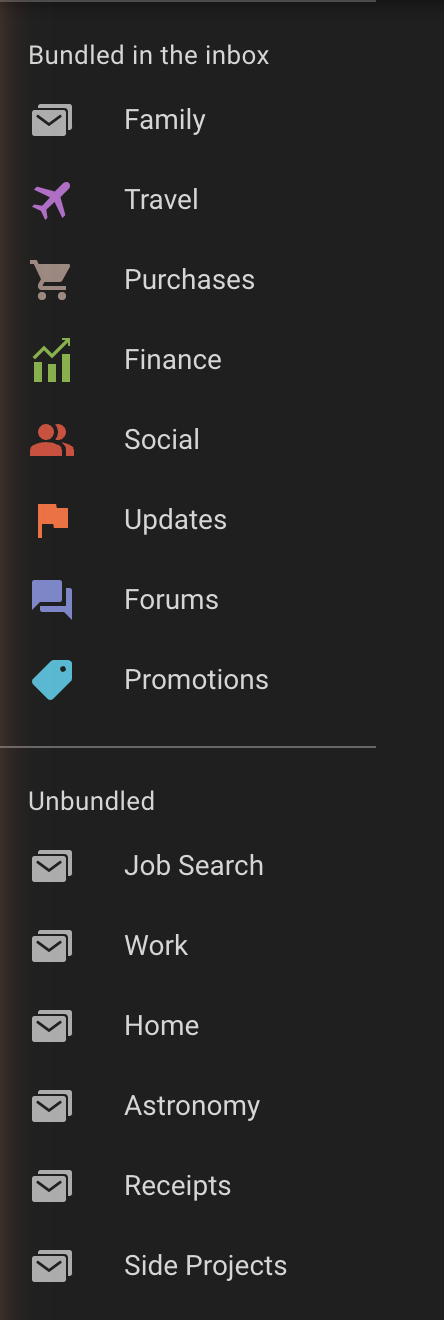
Inbox split the left menu's labels in two, and so does Inbox Reborn:
- Bundled in the inbox — the seven categories (Travel, Purchases, Finance, Social, Updates, Forums, Promotions) and every label of yours whose mail collapses into a bundle. Labels you drag up are listed first, above the categories.
- Unbundled — every other label. Their emails show one by one, with the label's chip, as in Gmail. The arrow beside each section's title folds that section up, so a long label list (or the bundled rows) stays out of the way; click the title or the arrow again to unfold it. Each fold is remembered, in every Gmail tab, and a label can still be dragged onto a folded title.
What you start with
As in Inbox, every label of yours starts in Unbundled and every category starts in Bundled in the inbox. Nothing is bundled until you say so, apart from the categories. Your choices are saved per Gmail account, so a work account and a personal account each keep their own.
The sections appear only while bundling is on (Stock Inbox, or Bundle emails under Customize in the settings). Gmail's own "Labels" heading reads Bundled in the inbox, and the + for a new label is under Gmail's More menu, where Gmail also keeps the labels you've set to hide from the menu.
Dragging a label or a category
Press on a label and drag it to the other section. The name follows the pointer and the section you're over is tinted; let go to drop. Esc cancels a drag.
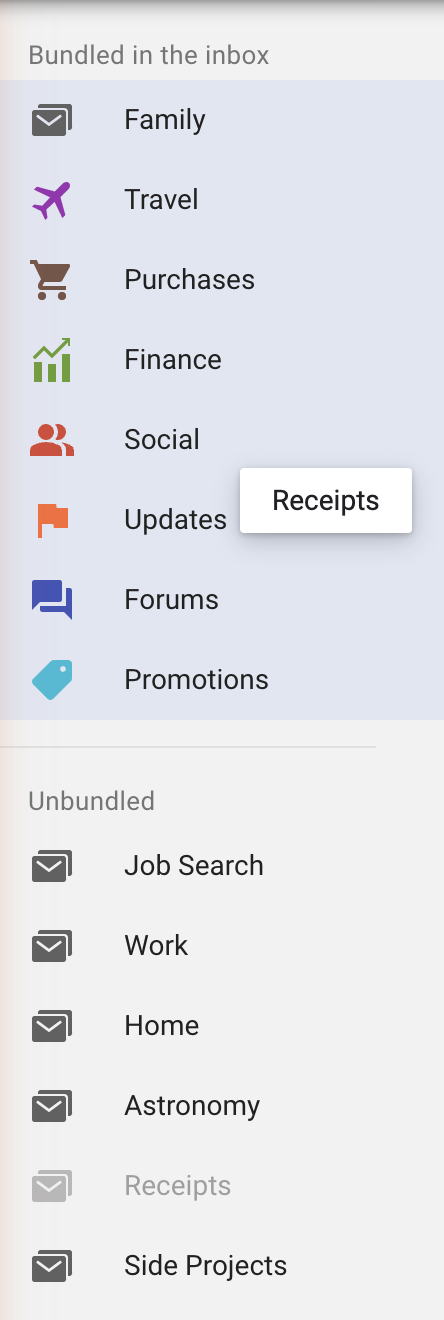
- Up, into Bundled in the inbox: the label's inbox mail collapses into a bundle, and the label is listed above the categories.
- Down, into Unbundled: the label stops bundling; its emails show as ordinary rows again.
- The categories drag too. Pull Promotions (or any of the seven) down to Unbundled and its bundle leaves the inbox, its emails showing as rows; drag it back up and the bundle returns. Purchases, Travel or Finance dragged up also turn their switch on in the settings.
- A nested label goes with the label it is nested under: drag the top-level label. Labels
under an
Unbundledlabel can't be dragged; they never bundle.
A plain click still opens the label, and the label's ⋮ menu and the arrow that expands nested labels keep working as Gmail's.
What moves when you drag
This is the one place the extension moves mail, and it does it the way Inbox did when you bundled or unbundled a label: the label's mail goes with it. It all happens through Gmail's own list and toolbar in your tab, a page at a time, so Gmail's Undo works on each step, and nothing is deleted.
Dragging down archives the label's inbox mail
When a label (or category) goes to Unbundled, its bundle leaves the inbox, and so does its mail: the label's inbox conversations are archived (marked Done), the way Inbox cleared a bundle out of the inbox. They stay under the label and in All Mail.
The extension remembers exactly which conversations it archived, per label and per account, so that a later drag up can bring back those and nothing else. That matters if you also read Gmail on your phone or in another app: a drag up won't surprise you by hauling years of archived mail back into the inbox.
Dragging up asks first, then brings mail into the inbox
When a label goes to Bundled in the inbox, its bundle can only form from inbox mail, so the extension offers to bring the label's mail back. It always asks before anything moves.
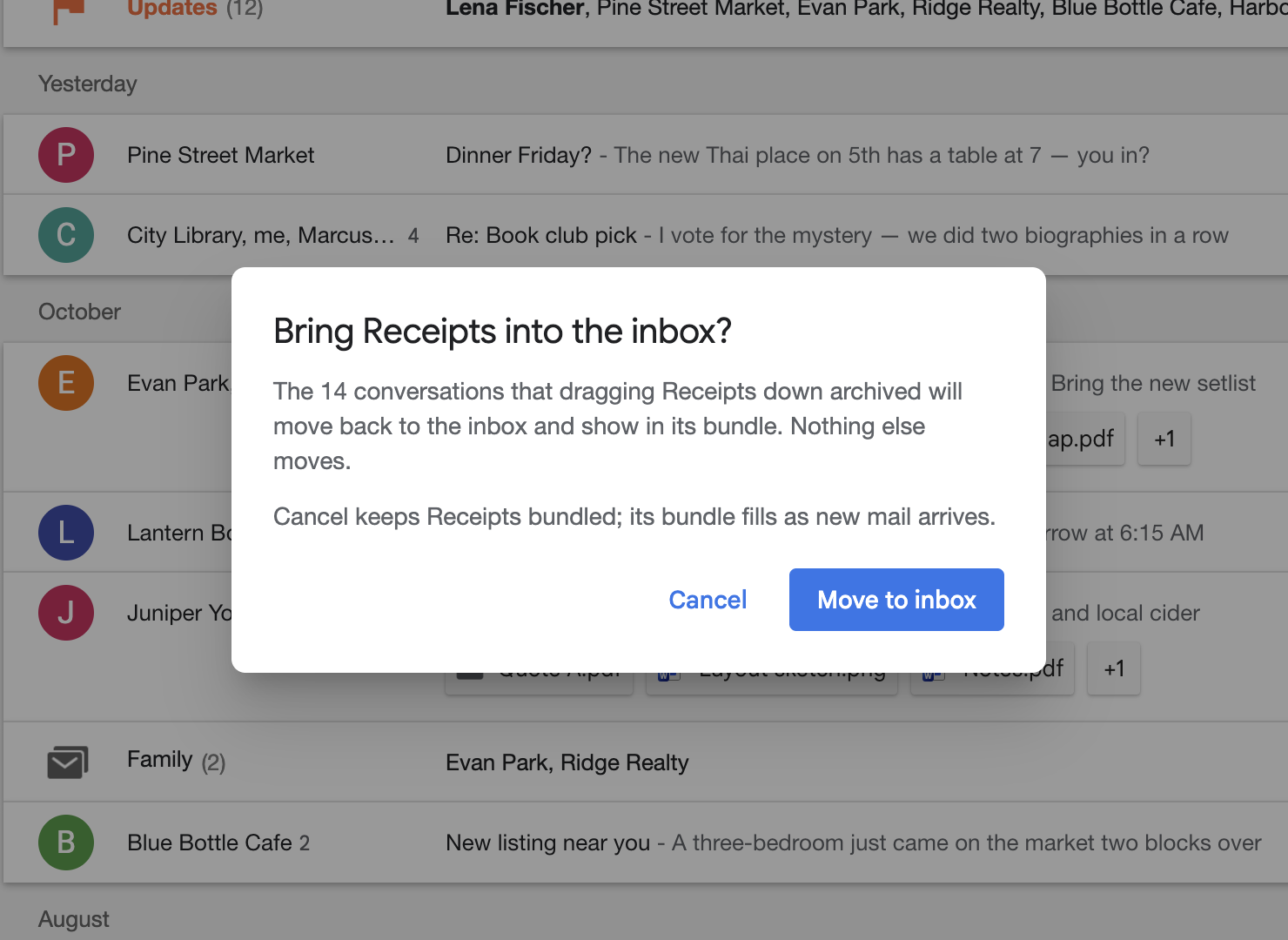
- If an earlier drag down archived mail for this label, the dialog says how many conversations that was, and Move to inbox brings back exactly those. Nothing else moves.
- If nothing is remembered (a label you've never dragged down), the extension opens a search for the label's archived mail, shows you the list, and asks before all of it moves into the inbox. Mail in Trash and Spam stays where it is.
- Cancel keeps the label bundled with no mail moved; its bundle fills as new mail arrives.
Enter is Move to inbox and Esc is Cancel. While mail moves, a small note at the bottom left counts along; when it's done it says how many went.

Limits and recovery
- A move stops after 5,000 conversations and says so; drag again to continue.
- If Gmail shows a list the extension doesn't recognize (a Gmail redesign), the move stops with a note and nothing is left half done: the label still changed sections, and its mail can be moved by hand from the label's page with Gmail's select-all and Archive or Move to Inbox.
- To put everything back the way Gmail had it, drag the label down (which archives its inbox mail) or up, answering the dialog as you prefer, then open the label's page and use Gmail's own Move to Inbox on whatever you want in the inbox.
When the left menu is collapsed
With Gmail's menu collapsed to icons, the two titles and the drop hint are hidden and the rows keep Gmail's icon-only look. Expand the menu to drag.