Gmail's categories
Seven of the bundles come from Gmail's own sorting, not from anything the extension decides:
| Category | What Gmail puts there |
|---|---|
| Travel | Flight, hotel, car and train confirmations and itineraries, plus your travel-word labels |
| Purchases | Orders, receipts, shipping and delivery notices |
| Finance | Bank, card, bill, statement and payment mail |
| Social | Social networks, dating sites, media-sharing sites |
| Updates | Automated notifications: confirmations, statements, reminders, alerts, most "no-reply" mail |
| Forums | Mailing lists, discussion groups, and threads with many participants |
| Promotions | Marketing, offers, newsletters that sell something |
Gmail classifies every message on its servers, as it arrives, whether or not you show the tabs. The extension reads the result and bundles by it. Turn the extension off and the category is still there: it's the chip Gmail draws on the row, and the tab the message would sit under.
"Why does all my new mail land in Updates or Forums?"
Because that is where Gmail's classifier files automated mail. Anything sent by a system rather than a person (order updates, account notices, calendar mail, job alerts, app notifications) tends to be Updates; anything that looks like a list or a group thread (GitHub and other issue-tracker notifications, Google Groups, mailing lists, "reply all" threads) tends to be Forums. On a typical account those two cover most of what arrives on a weekday, so their bundles get big. Inbox's Updates bundle was the same.
You can change it, and the change sticks on every device because it's Gmail's:
Set a rule: a filter with "Categorize as"
A Gmail filter with the action Categorize as overrides the classifier for everything it matches, on every device, from then on. Settings → Filters and Blocked Addresses → Create a new filter, describe the mail (From, Subject, Has the words), click Create filter, tick Categorize as and pick Primary (no category, so the mail shows as an ordinary row) or the category you'd rather it bundled under. Tick Also apply filter to matching conversations to re-file what's already there. See Rules and custom bundles for the filter recipe.
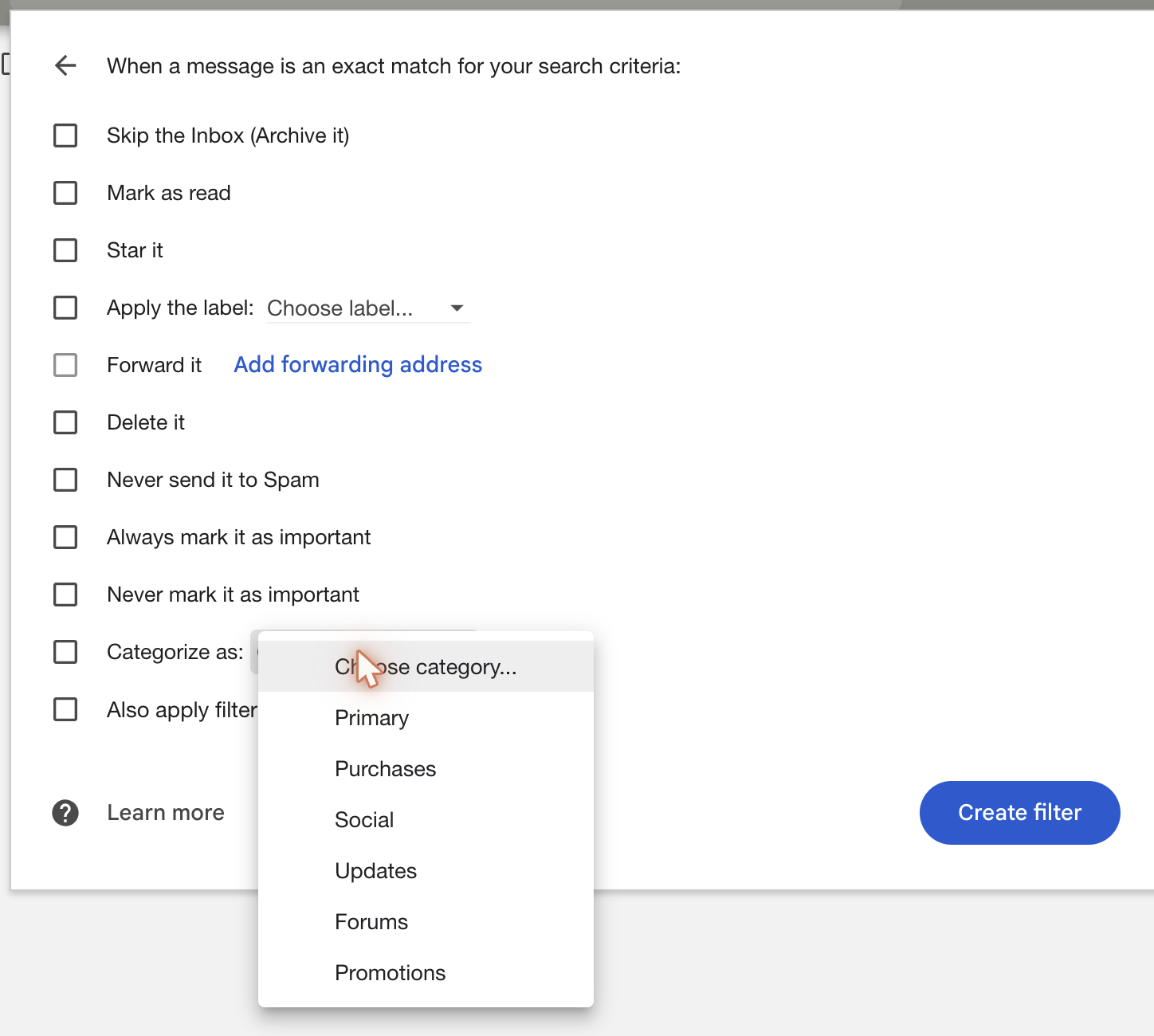
This is the fix for the handful of senders you actually want to see one by one: a GitHub notification address, your bank, a newsletter you read.
Teach Gmail one sender at a time (with the tabs on)
While Gmail's category tabs are on, right-clicking an email offers Move to tab; pick a tab and Gmail asks whether to do this for future messages from that sender. With the tabs off (the setting this manual recommends) that menu isn't offered, and the filter above is the way to say the same thing.
Re-file one email
Dragging an email onto Social, Updates, Forums or Promotions in the left menu moves that one conversation to that category; it stays in your inbox and joins that bundle. This doesn't teach Gmail anything about the sender.
Or stop bundling a category
- Drag the category down to Unbundled in the left menu. Its bundle leaves the inbox and its mail shows as rows. Read what moves when you drag first: dragging a category down archives its inbox mail, and dragging it back up asks before bringing that mail back.
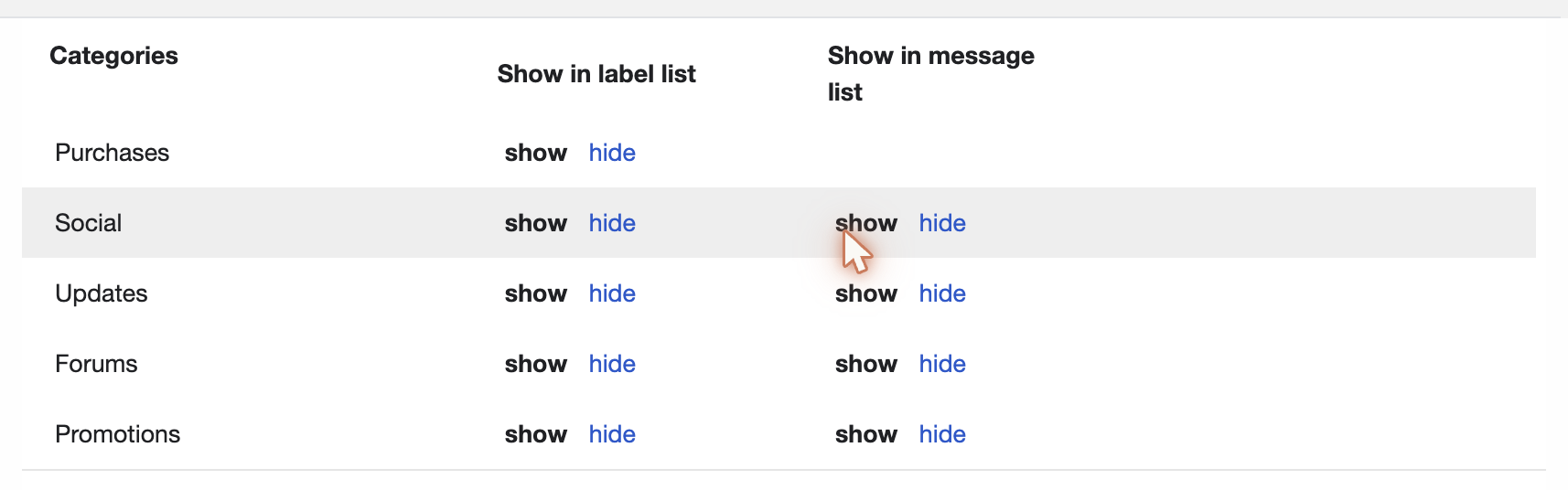
- Or hide the category's chip: Settings → Labels → Categories → hide next to Updates (or Forums). Without the chip there is nothing to bundle by, so that mail shows as rows, and nothing moves. You can still open the category from the left menu.
Why a category only bundles once it is "shown"
Social, Updates, Forums and Promotions bundle from the chip Gmail draws on the inbox row. Gmail draws that chip only for categories set to show in the message list (Settings → Labels → Categories). A category set to hide still sorts mail, and its page in the left menu still lists it, but the inbox row says nothing, so the extension can't bundle it.
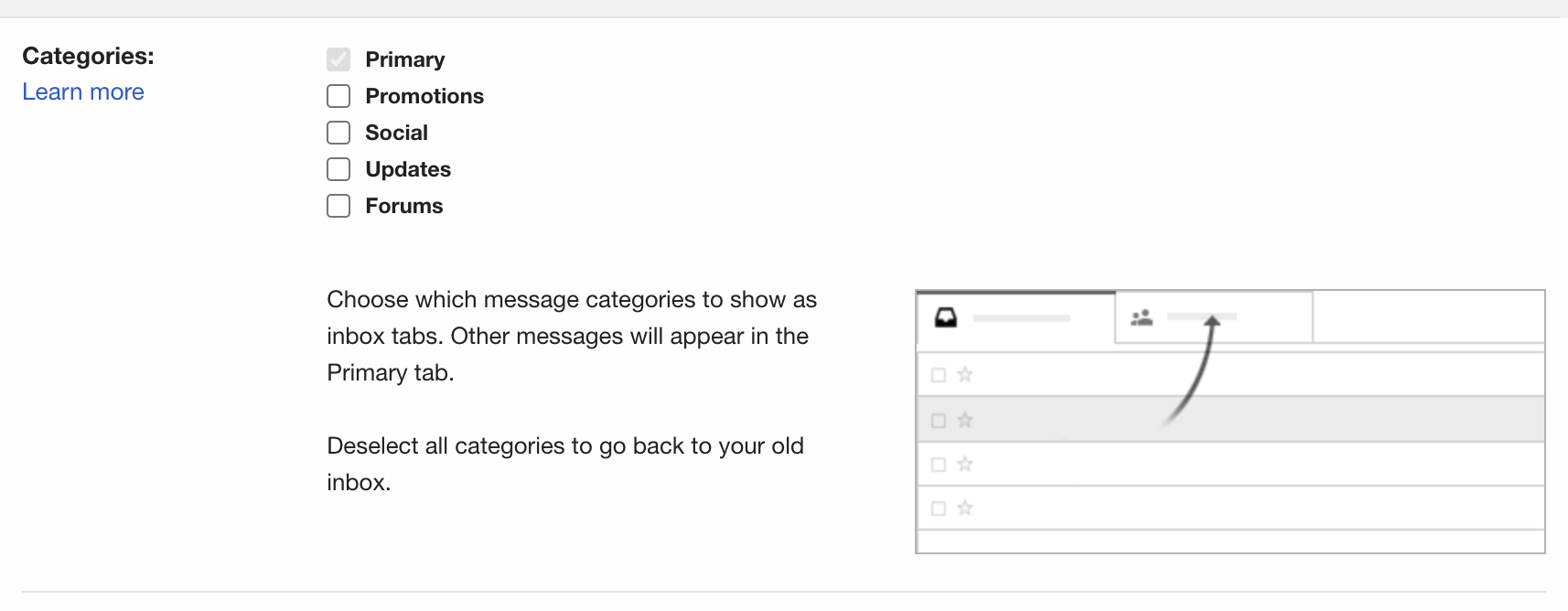
The category tabs (Settings → Inbox → Categories) are separate. Leave only Primary ticked, so that all your inbox mail is in one list where it can bundle.
Purchases, Travel and Finance
Gmail sorts mail into these three too, but draws no chip for them and shows only
Purchases in its own menu. The extension lists all three in the left menu and bundles them by
running the searches Gmail's own Purchases, Travel and Finance pages run
(in:inbox category:purchases and so on), every minute and a half while Gmail is open and
after Gmail reloads a list. The bundles form with the inbox from the last search's answer,
remembered in the browser, and the fresh search a moment later corrects anything that changed.
Unlike Social, Updates, Forums and Promotions, these three can't be applied by hand: Gmail
has no label for them, so neither the Labels menu nor a drop on the left menu puts a
conversation there, and a filter's Categorize as doesn't offer them. For Travel the
extension takes your own labels as the way in: a label with a travel word in its name
(Cruise, Trips/Japan) counts as travel, and the Travel search becomes
in:inbox {category:travel label:Cruise}. See
Travel and your travel labels.
They are on with Stock Inbox, and under Customize → Bundles otherwise. Clicking one of these bundles opens that search. If Google changes how Gmail asks for its lists, these three bundles stop appearing (with a note in the browser console) until the extension is updated; everything else keeps working.
When a conversation has two categories
Gmail sorts each message, not the conversation, so a conversation can carry two chips, Updates and Forums most often: a notification arrived as Updates and a reply to it was filed as Forums. Gmail shows such a conversation under both tabs. Inbox Reborn puts it in one bundle, choosing in Inbox's order (Travel, Purchases, Finance, Social, Updates, Forums, Promotions), so it bundles under Updates and is counted once. A label of your own always wins over a category. See One bundle per email.