How bundles work
A bundle is one row in the inbox standing for several emails that share a label. Inbox had them for Travel, Purchases, Finance, Social, Updates, Forums and Promotions, and for any label you chose to bundle. Inbox Reborn builds them the same way.
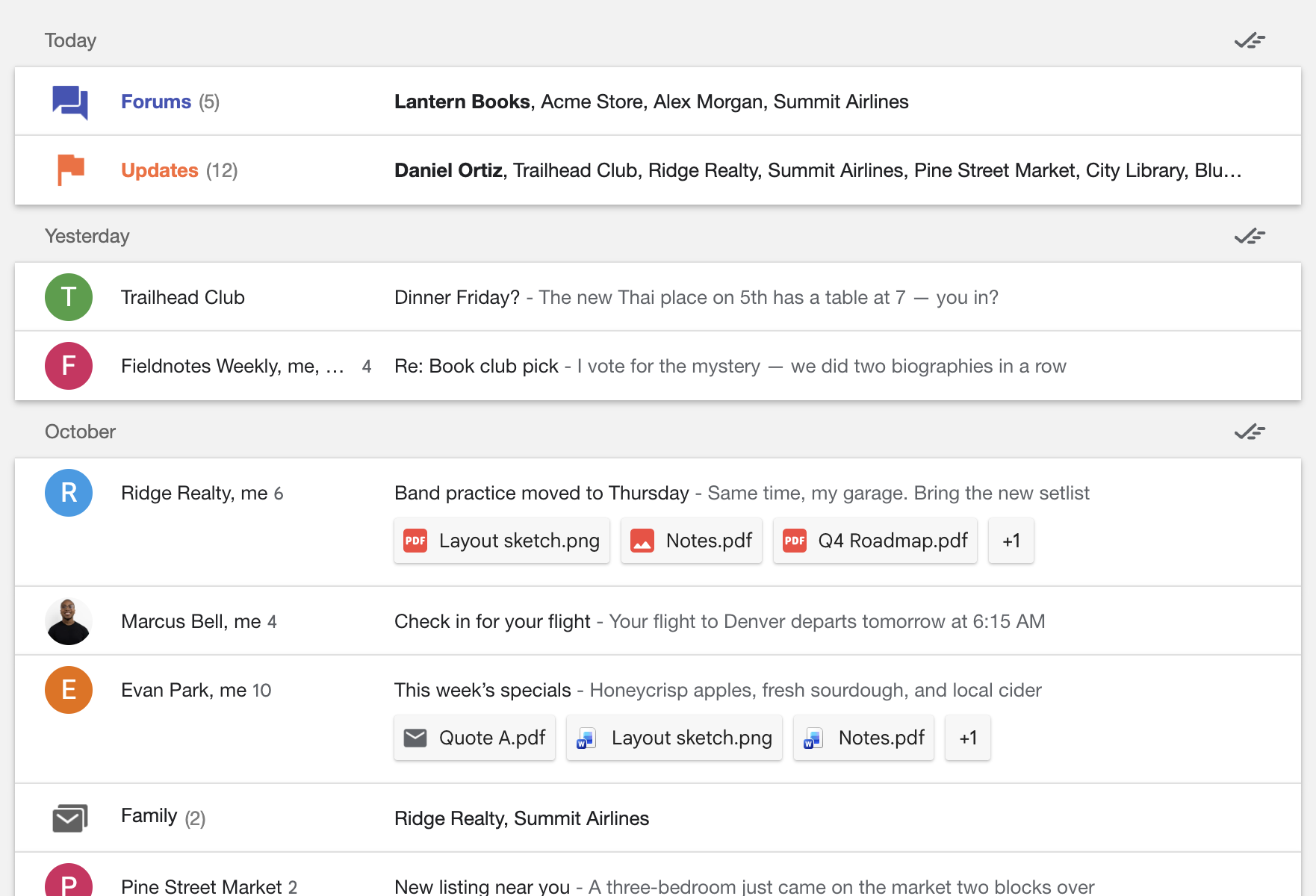
A bundle row shows the label's icon and name, how many conversations are inside, and who wrote them, unread senders in bold. The row is bold while the bundle holds unread mail.
What goes in a bundle
Bundles are built from the labels on your inbox emails:
- An email joins a bundle when it is in the inbox and carries a label that is set to bundle: one of the seven categories, or a label of yours that you've dragged to Bundled in the inbox (see Bundled in the inbox and Unbundled).
- A label needs two or more inbox emails to collapse into a bundle, unless Bundle single emails is on in the settings. Stock Inbox turns it on, as Inbox bundled single emails too.
- Pinned (starred) emails never bundle. They stay as rows, however they are labeled, so what you've marked important is never folded away.
- Labels applied to archived mail don't make bundles. Only inbox mail does. This is why dragging a label up offers to bring its archived mail into the inbox.
- A label nested under a label called
Unbundled(the old way to keep a label out of bundling) never bundles, and keeps its emails out of other bundles too.
One bundle per email
Inbox put each email in a single bundle, and so does the extension. When an email's labels would put it in more than one, it goes to:
- A label of your own, if one of them is bundled. Receipts beats Updates.
- Otherwise the first category in Inbox's order: Travel, Purchases, Finance, Social, Updates, Forums, Promotions.
This matters more than it sounds. Gmail sorts each message of a conversation on its own, so a conversation often ends up with two category chips, for example Updates and Forums when a notification thread picked up a reply. Such a conversation sits in the Updates bundle only, and is counted once. Read Gmail's categories for why that happens and how to steer it.
Where bundles sit
With Stock Inbox on, bundles sit in a group of their own above Today, as Inbox had them. Turn on Show bundles in Today in the settings to sort them into the dated groups by their newest email instead.
Opening and sweeping a bundle
- Click a bundle to open the mail inside: for your own labels, the label's page; for a category, Gmail's category page (for Purchases, Travel and Finance, the search Gmail uses for them).
- Hover a bundle for its ✓, which sweeps the bundle: every conversation in it is archived, pinned ones excepted. The ⋮ next to it opens Gmail's menu for all of them at once (mark as read, labels, mute and so on).

Travel and your travel labels
Google decides what goes under Travel and offers no way to add to it by hand: there is no Travel label to apply, dropping a row on Travel does nothing, and a filter's Categorize as doesn't offer it. The extension fills that gap with your own labels.
Every label of yours with the whole word trip(s), travel, cruise(s), flight(s), vacation(s)
or hotel(s) in its name counts as travel: Cruise, Trips/Japan, Summer Vacation do,
Cruising doesn't. Gmail won't let you create a label named Travel, so use Trips,
Cruise, Flights or Vacation. Such a label is treated as travel in three places:
- The Travel row in the left menu opens the mail Google files as travel plus the mail in
those labels, as one search (
{category:travel label:Cruise}). - The Travel bundle in the inbox is built from the same search, so an email you label
Cruiseand move to the inbox joins the Travel bundle. - Clicking the Travel bundle opens that search for the inbox.
So to put a conversation under Travel: label it Cruise (or any travel-word label) and, if
it's archived, move it to the inbox. It bundles under Travel the next time the extension
refreshes the category search, within a minute and a half.
One exception follows from one bundle per email: if you also drag
the Cruise label up to Bundled in the inbox, its mail bundles under Cruise, since a
label of your own beats a category. Leave the label in Unbundled for its mail to bundle under
Travel.
Icons
Travel, Purchases, Finance, Social, Updates, Forums and Promotions carry Inbox's colored icons. Every label of yours gets Inbox's stacked-envelopes bundle icon, on its bundle row and in the left menu, whatever the label is called; a label you've given a color in Gmail keeps that color on the icon. A travel-word label gets Travel's plane instead.
Bundles are only in this browser
A bundle is a way of drawing the inbox. It is not a label, a folder or a filter, so Gmail on your phone, Gmail in a browser without the extension, and other mail apps all show the same mail as ordinary rows. Nothing about your mail changes when a bundle forms or when you turn bundling off.