Getting started
1. Install and reload Gmail
Install from the Chrome Web Store
or Firefox Add-ons,
then reload any open Gmail tab. The extension runs only on mail.google.com.
Pin the extension's icon to your browser's toolbar (in Chrome: the puzzle-piece button, then the pin next to Inbox Reborn). Clicking the icon opens the settings popup.
2. Leave Stock Inbox on
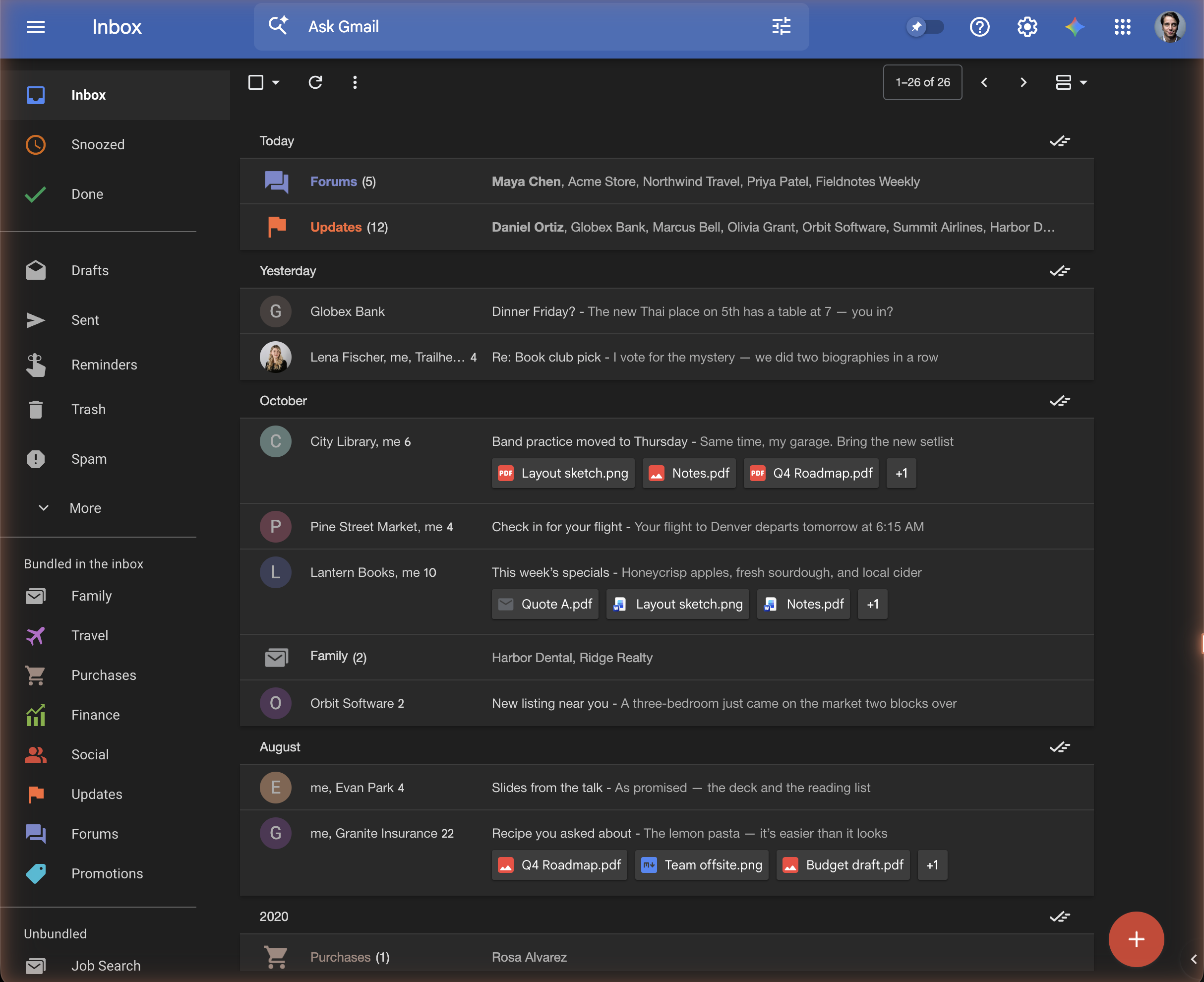
New installs come up with Stock Inbox on. That one switch sets everything to Inbox's own behavior: bundles (Purchases, Travel and Finance included), single-email bundles, bundles in their own date group, avatars, no dates on the rows, and AI Inbox and All Mail hidden from the left menu.
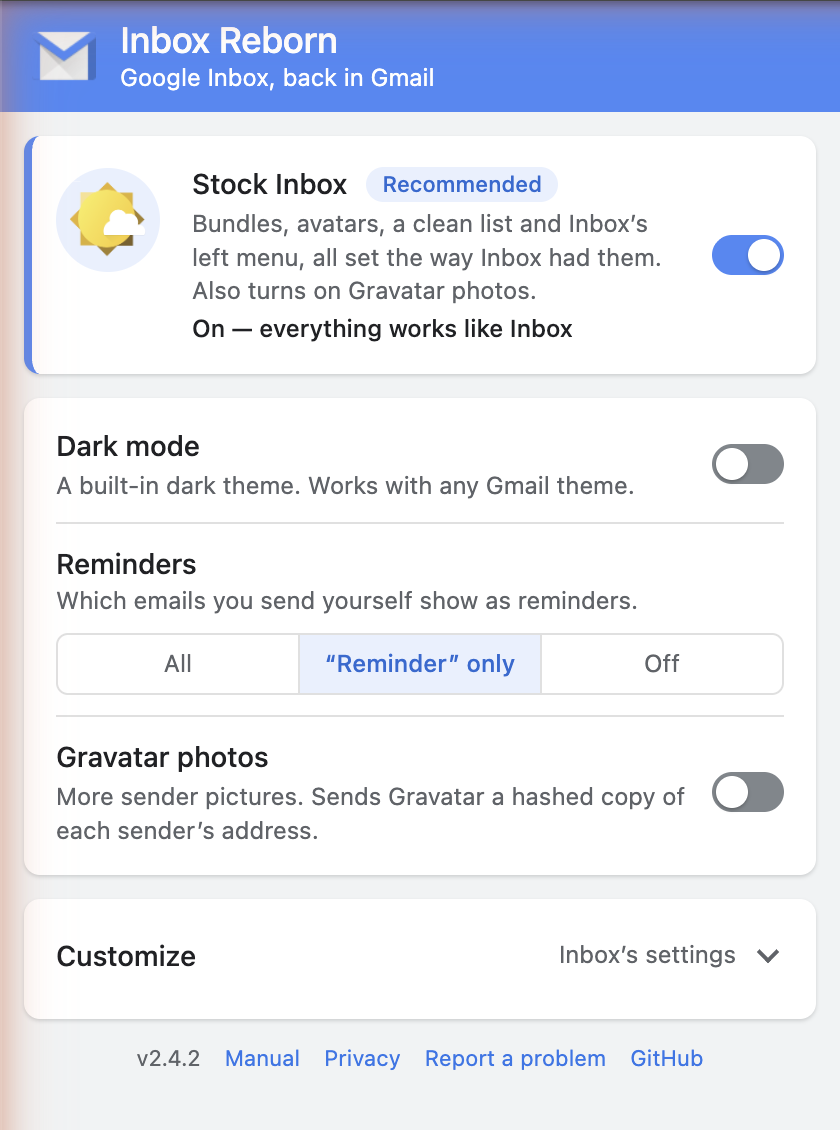
Change any of those settings later and Stock Inbox turns itself off, keeping your change. Turn it back on to go back to Inbox's values. Dark mode, Reminders and Gravatar photos are yours either way.
3. Two Gmail settings worth changing
Inbox Reborn works with Gmail as it is, but Inbox never had category tabs, and bundles only form inside the inbox itself. In Gmail, open Settings (gear) → See all settings:
- Inbox → Categories: leave only Primary ticked. With the tabs off, all your inbox mail is in one list, where the extension can bundle it.
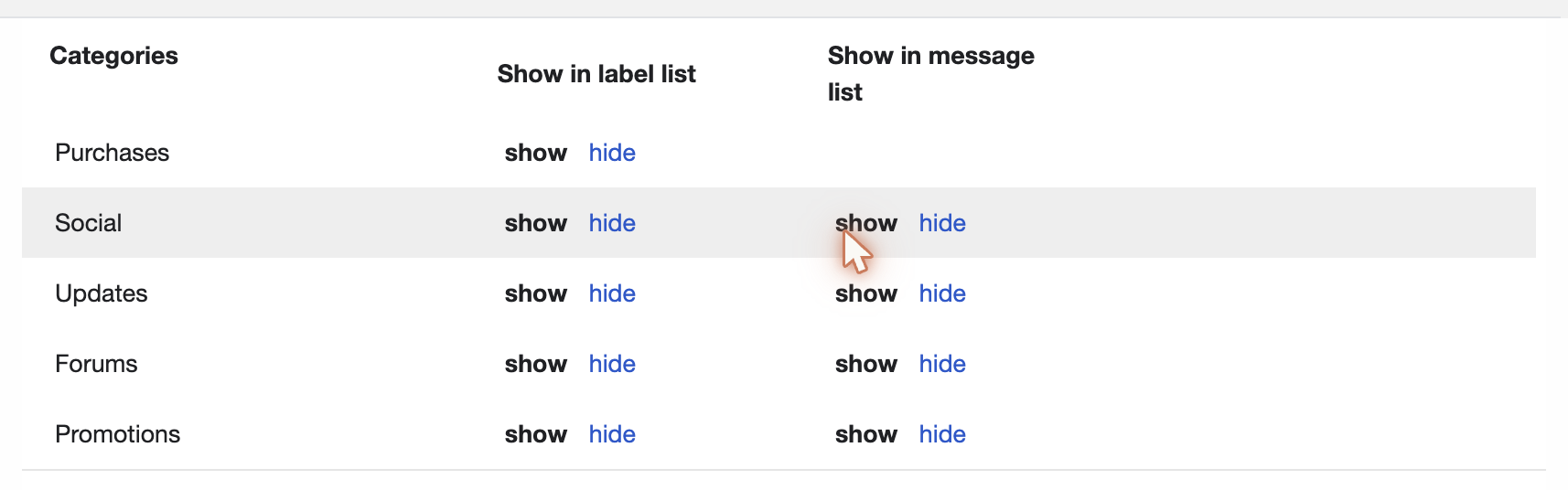
- Labels → Categories: click show next to Social, Promotions and Forums (and Updates if you want an Updates bundle). This makes Gmail put the category's chip on each inbox row, and the chip is what the extension bundles by. See Gmail's categories for why Updates is a judgment call.
Other settings that bring Gmail closer to Inbox's look:
| Gmail setting | Choose |
|---|---|
| Inbox → Inbox type | Default (or Starred first) |
| Inbox → Importance markers | No markers |
| General → Maximum page size | 100 conversations per page |
| General → Personal level indicators | No indicators |
| Advanced → Multiple Inboxes | Disable |
| Advanced → Preview Pane | Disable |
4. What happens to your mail on the first day
Nothing moves. The extension draws Gmail differently; it does not archive, label or move anything on its own. On day one:
- The seven categories bundle. Travel, Purchases, Finance, Social, Updates, Forums and Promotions sit in Bundled in the inbox, and the inbox mail Gmail has sorted into them collapses into bundles. The mail is still in your inbox; it is drawn as one row per bundle.
- All of your own labels start in Unbundled. Their emails show one by one, as in Gmail. To bundle a label, drag it up into Bundled in the inbox. The first drag up asks before it brings the label's archived mail into the inbox, so you can also say Cancel and let the bundle fill with new mail only.
- Your phone and other devices see Gmail as usual. Bundles are a way of drawing the inbox in this browser; they aren't labels or folders, and they don't exist on your phone.
The one way the extension moves mail is the drag between the two sections, described in Bundled in the inbox and Unbundled. Dragging a label down archives its inbox mail (so the rows leave the inbox, as the bundle did) and remembers which conversations went; dragging it back up asks, then brings exactly those back.
5. Dark mode
Turn on Dark mode in the settings popup. It applies instantly, in every Gmail tab, and works whatever Gmail theme you have.