The inbox
Date groups
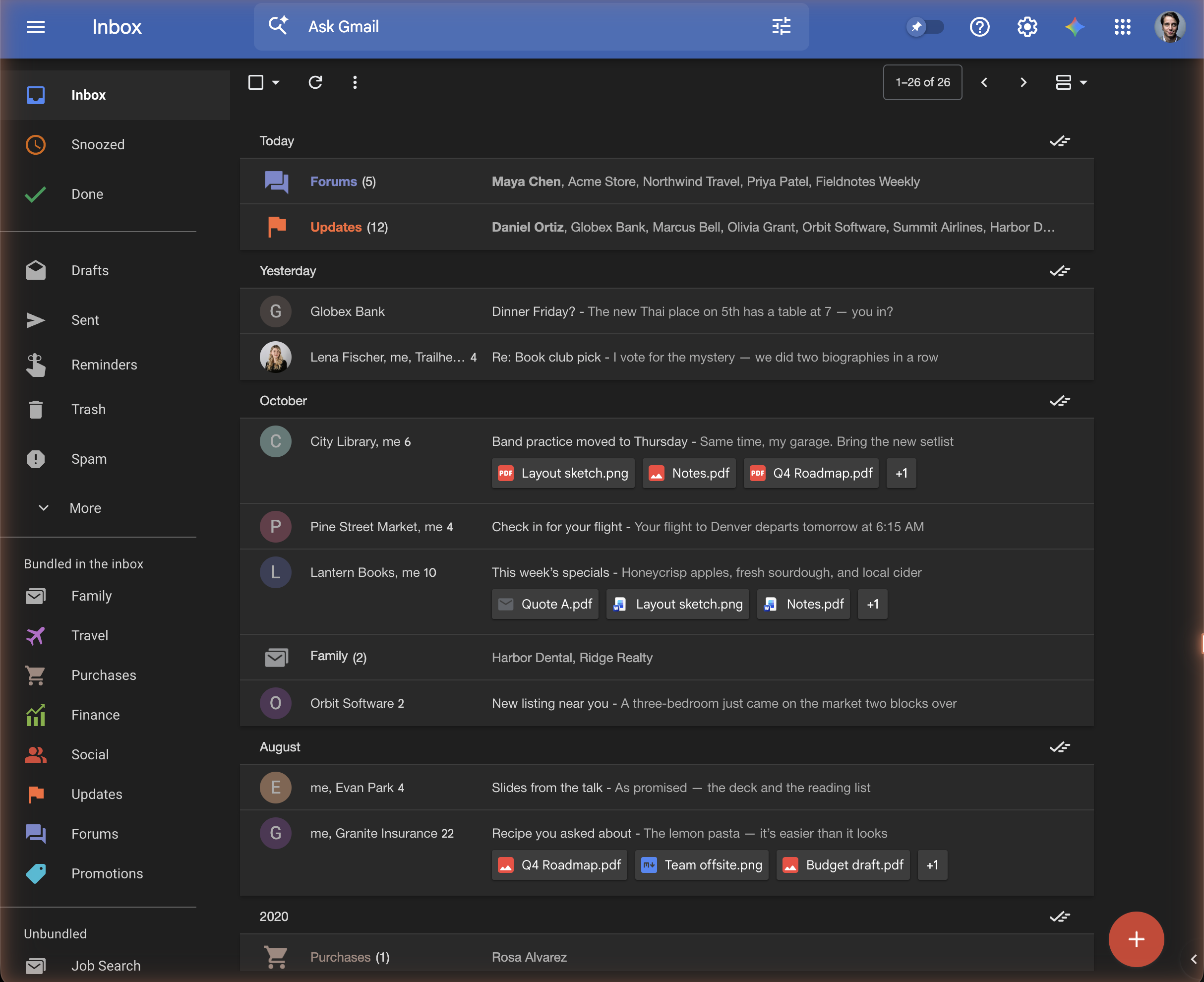
The inbox is grouped the way Inbox grouped it: Today, Yesterday, This week, This month, then one group per month, then one per year. Snoozed mail that has come back and pinned mail sit in their groups by date, as everything else does.
With Stock Inbox on, rows carry no date or time; the headings carry the dates, as in Inbox. Turn Dates on emails on under Customize → Email list in the settings to get Gmail's date column back.
Sweep
Every date heading has a ✓ at its right. Clicking it marks the whole group done: every email in the group is archived, except pinned (starred) ones, which stay. Gmail shows its usual Undo afterwards, so a sweep is never final until you let the Undo go.
A bundle has a ✓ of its own when you hover it, which sweeps just that bundle.
Hover actions
Move the mouse over an email and Inbox's actions appear at the right of the row, in Inbox's order:

| Action | What it does |
|---|---|
| Pin | Stars the email. Pinned mail never joins a bundle and never gets swept. |
| Snooze | Opens Gmail's snooze picker. The email leaves the inbox and comes back at the time you choose. |
| Trash | Moves the email to Trash. |
| Done | Archives the email (Gmail's Archive). It leaves the inbox and stays in All Mail and under Done. |
| ⋮ | Gmail's own menu for the row: mark as read or unread, labels, mute, and the rest. |
The same actions are on the toolbar when you open an email, and Gmail's keyboard shortcuts
work as they always did (e archives, s stars, b snoozes, # trashes).
Pinned switch
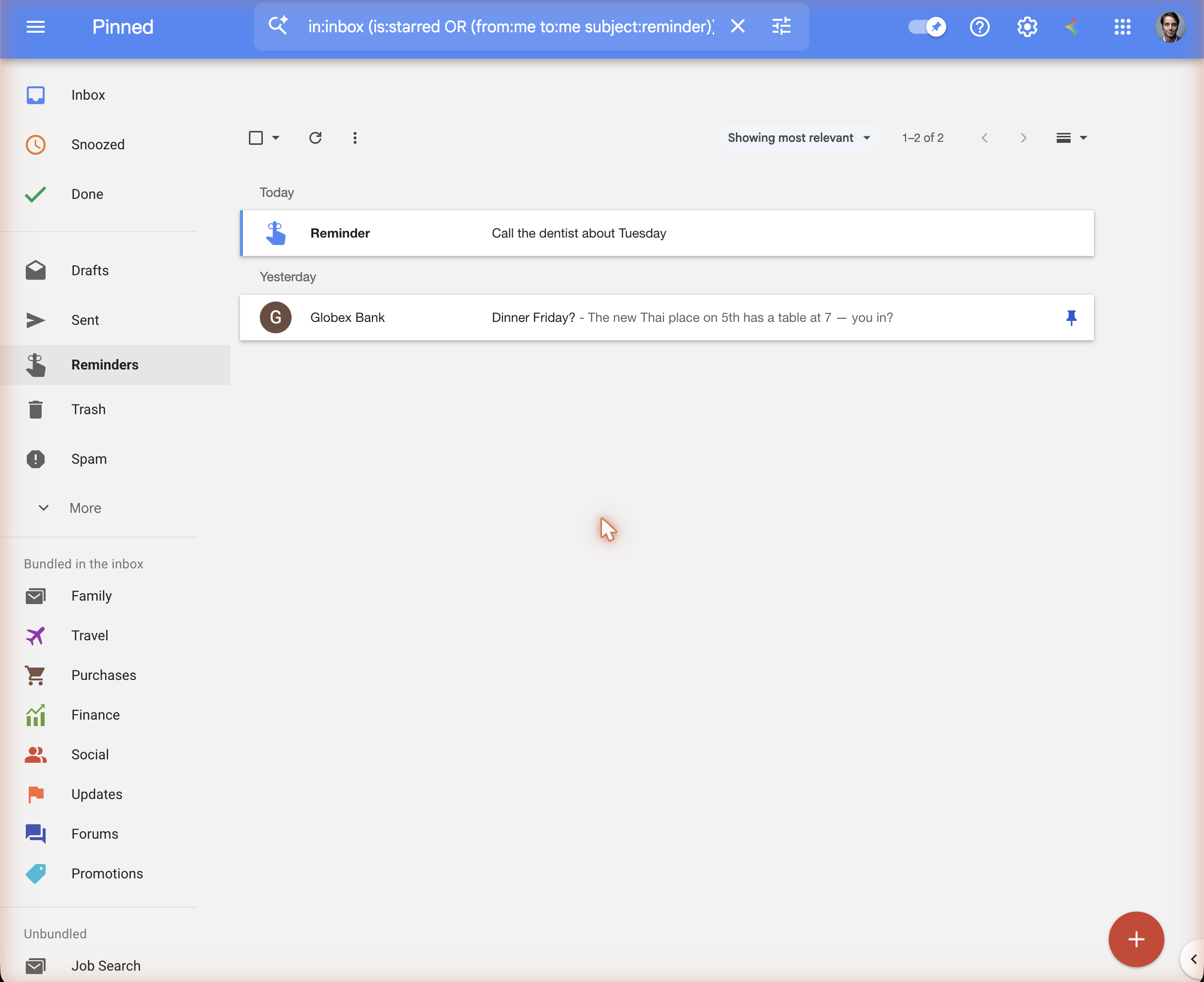
The pin switch in the header, next to the search box, is Inbox's pin toggle. Turn it on and the inbox shows only your pinned (starred) mail and reminders; turn it off for everything. The left menu's title reads Pinned while it's on.
Inbox, Snoozed and Done
The top of the left menu is Inbox's: Inbox, Snoozed and Done. Done is Gmail's archive (All Mail without the inbox), so a swept group or an archived email is one click away.
Reminders
Inbox had reminders; Gmail doesn't. The extension shows emails you send to yourself as reminders: a blue hand icon instead of an avatar, and the subject as the reminder text. Write one with the reminder button on the speed dial, or send yourself any email.
The Reminders setting chooses which of your emails to yourself count:
- All — every email from you to you
- "Reminder" only — only those whose subject is Reminder (the default)
- Off — none; they show as ordinary emails
Avatars
Each row starts with the sender's picture: a photo Gmail has shown you for that person, a company's published logo, the sender's site icon, or, when none is found, a colored circle with their initial. Turn Gravatar photos on in the settings to also look senders up on Gravatar (off by default, because it shares a hashed copy of each address with Gravatar; see Privacy). Avatars under Customize → Email list turns the whole column off.
Calendar events
An invitation shows on a small card with the event's date and time, and Yes / Maybe / No buttons that answer it from the inbox.
Dark mode
Dark mode in the settings popup switches the whole of Gmail to the extension's dark theme, instantly, without touching Gmail's own theme setting. It covers the inbox, the open email, the left menu, the settings popup, and the dialogs the extension draws.
Speed dial
Hover the red compose button for the reminder button and your three most recent contacts. See Speed dial.